Issues
Use the issues form to track concerns that could impact your project. For example, issues might include incomplete drawings or incorrect materials.
 General Rules
License: Certain actions, such as adding issue records, require a license as well as security permission. Contact your project administrator if you are unable to perform some actions using the mobile app.
Required fields:
- If auto-numbering is on, numbers are assigned to issue records with non-draft statuses when they're synced to the database.
- Required fields are marked with an asterisk (*) and are enforced for non-draft records. Additionally, required fields in workflow templates are highlighted red if left incomplete upon submission.
Workflows:
- Draft issue records are visible to the user who created them and the Portfolio Administrator.
- Issue records can't be changed back to the Draft status.
- Issue records with a locked status can't be edited or deleted.
- Status workflows: In status workflows, when an assignment or courtesy copy is added to a draft an issue record, the status changes automatically to the next workflow status. This is set at the record settings level by your administrator.
- Template workflows: Status names and workflow steps are configured by your administrator. Generally, the status changes when the person responsible for the next action completes their task, such as:
- A creator publishes a draft
- When an issue is forwarded for review
- When a reviewer selects a response and submits the step
Workflow templates are not applicable for Free or Go projects.
List View
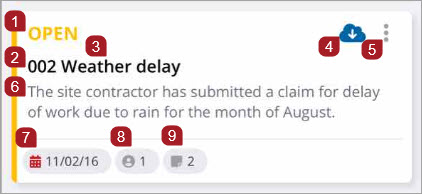
- Record status
- Record number
- Subject
- Downloads all the drawings or files linked to this Issue. Any new links will be automatically downloaded when the project is synced.
- Sub-menu: copy
- Latest comment
- Due date
- Assignee information
- Referenced records or drawings
Record View
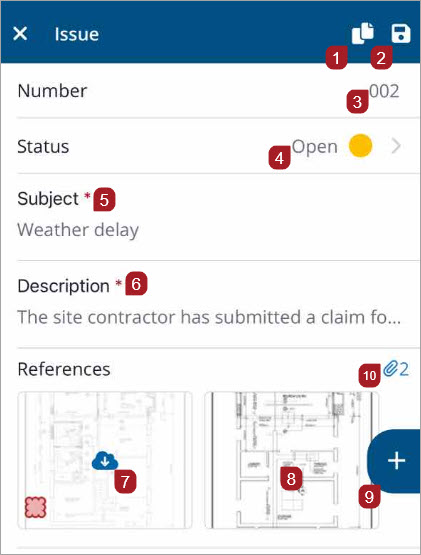
- Copy the record
- Save the record
- Number - Not visible in Draft mode if issues are set to auto-increment (web > general settings)
- Record status
- Subject
- Description of the issue
- Select to only download this file
- Pinned / linked drawing. Select the thumbnail to view
- Link (Pin) to drawings, photos, or videos.
- Number of attachments
Viewing
For information on how to search, sort, and filter the Issues list, see Filter, Sort, and Search.
Creating
To create an issue (workflow statuses)
- In the Issues list view, select
 .
. - Enter a subject.
- Enter a description.
- To add assignments, select Assign.
- Enter additional details and information, then select
 .
.
—Or—
To send courtesy copies, select CC.
To create an issue (workflow templates)
Workflow templates are not applicable for Free or Go projects.
If the start step of a template is unrestricted, or you have security permissions for a restricted start step, you can access and create an item with a workflow template from the records list view.
- In the Issue list view, select .
- If there is only one template available, the New Issue page displays. If there are multiple templates available, the Select Template page displays. Choose a template, then select Add.
- Enter a subject for the issue, then select Done.
- Enter a description, then select Done.
- To send courtesy copies, select CC.
- If you have permissions, you can make Assignments and require a response from assignees by selecting Assign/Assign to.
- Select Due Date to choose a project deadline, then select Done.
- Enter additional details and information.
- To save your updates, select , then select x to return to the records list.
In the list, a star icon indicates the default workflow template that is selected by your administrator.
Once the issue is submitted, a step due date is automatically set based on the step completion days value in the workflow template. However, in the web app, administrators have the flexibility to customize individual step deadlines to better fit each team's specific needs.
A pop-up message displays: Issue updated.
—Or—
If you are a required assignee, template manager, or portfolio administrator, the Submit option displays. To save your issue, move it to the next step, and return to the records list, select Submit.
A pop-up message displays: New Issue created.
If a response is required, when you select Submit, a response required message displays. You must select Response, choose a response, then select Select before you can submit.
If you select submit and there is no assignee assigned for the next step, the Add assignees to next step page displays where you are required to select an assignee, or the template manager, before the record can advance to the next step. See Assignments.
To comment on an issue
- In the Issues list view, select the issue.
- To start a conversation, select the Comments section, enter your comment, then select Add.
- Select .
—Or—
If replying to a comment, select Comment(s), enter your comment, then select Add.
- To copy an issue, see Copy Record. When you copy an issue item, the following fields copy over: Subject, Type, Impact, Importance, Location, and Custom.
Editing
To add or change a record status, type, or importance
- In the record view, select Status, Type, or Importance.
- To search the list, enter text in the Search field.
- In the record view, select
 .
.
A Status, Type, or Importance page displays with a list.
—Or—
To choose an item from the list, select it, then select Select to return to the record view.
—Or—
To return to the record view without making changes, select <.
To add a location
- In the Location box, select >.
- Choose a location from the list.
- Select Select.
- Select .
The location hierarchy is set in the web application.
-
To bulk edit your issues, see Batch Edit.
Linking / Attaching
-
To annotate a drawing and link it to this issue, see Drawing Annotations.
-
To link records or drawings to an issue, see Linking Records or Drawings.