 Tips voor zoeken
- Om in een subset van onderwerpen te zoeken, selecteert u
 in het zoekveld en daarna selecteert u een filter.
 - To search for a specific word or phrase, add quotation marks around it (example: "budget column") in the search field.
- Om de markering van zoektermen in een onderwerp te verwijderen, selecteert u
 .
. - Om in een onderwerp te zoeken, selecteert u
 , drukt u op Ctrl+F en voert u de zoekterm in.
ProjectSight Mobile
Neem de ProjectSight cloudgebaseerde bouwproject beheersoftware mee naar het veld op uw smartphone of tablet.


You can manage statuses for record types, drawing sets, and drawings.
- If the status workflow settings are locked at the project level, changes at the portfolio level affect the applicable records in the project.
- Nadat u de project instellingen hebt ontgrendeld, hebben wijzigingen op project niveau alleen gevolgen voor nieuwe records of records die zijn bijgewerkt nadat de instellingen ontgrendeld zijn.
- Records with default assignees are created in the first non-draft status.
- Status permissions aren't available for budget items, drawings, projects, specification sets, and specifications.
 To open the status workflow settings
- Open de record instellingen.
- Selecteer het item type.
- On the settings menu, select Workflow.
For meeting minutes, you can also select Item Workflow.
Adding statuses
You can add statuses to suit the needs of your project.
To add a status
- Selecteer Nieuwe status.
- Voer een unieke naam voor de/het Snippet-Item-Lower in.
- Select a color for the status.
- Lock the items that have this status.
- Send a notification when an item changes to this status.
When an item has that status, the selected color appears on the item tile and in the item.
Editing statuses
When a record has a specific status, you can lock it or automatically send a notification.
The lock and notification settings aren't available for budget, drawing, and default statuses.
Een Snippet-Item-Lower wijzigen
- Om de kleur te veranderen, selecteert u
 (Kleur) en daarna selecteert u een kleur.
 - Om de naam te wijzigen, selecteert u de naam en daarna wijzigt u die.
To set the default status for a drawing
- Select the checkbox in the Is default column.
The default status is applied when a drawing is uploaded in a drawing set.
Statuses that are set automatically can't be selected as the default.
To lock items with a specific status
- Select the checkbox in the Locks records column.
Any items with this status are locked and can't be modified. However, anyone with the Can Unlock Locked Records permission can unlock the item for editing.
Make sure at least one status is unlocked so that it can be assigned when an item is unlocked.
To add a notification when an item changes to a status
- In the notification settings, ensure that the RecordType - Status Changed notification is on.
- In the status workflow settings, select the checkbox in the Sends status notifications column.
When an item changes to this status, a notification is sent to the item author, assignees, and courtesy copy recipients.
To reorder the statuses
- Select the right side of a grid row, and then drag it to a different position.
- Budgets: Between Pending and Approved
- Daily reports: Between Pending and Rejected.
- Meeting minute items: Between Open and Closed.
Editing permissions for statuses
The permissions for a status determine which security roles can select that status and what they can do in a record with that status. In the Status Permission dialog:
- Set the overall access for the status.
- Select security roles that will have access to the status. This list is available if overall access is set to Restricted.
- Set access permissions for the selected security roles.
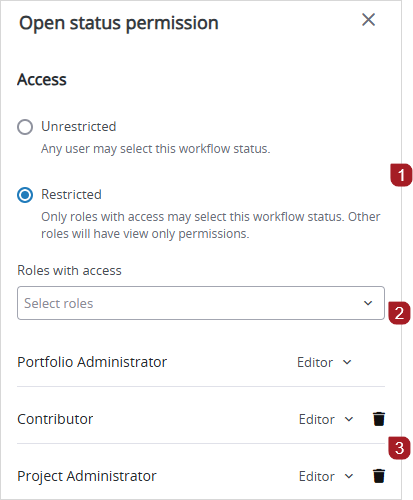
The following permissions are available:
- Editor: Select this status, edit the record, delete the record, and add comments according to your security role permissions for this record type.
- Commenter: Add comments to the record, edit your own comments, and mark your own assignments as completed according to your security role permissions for this record type.
Example
For RFIs, the Contributor security role has the Modify record permission but only has the View permission for the Responsible Company field.
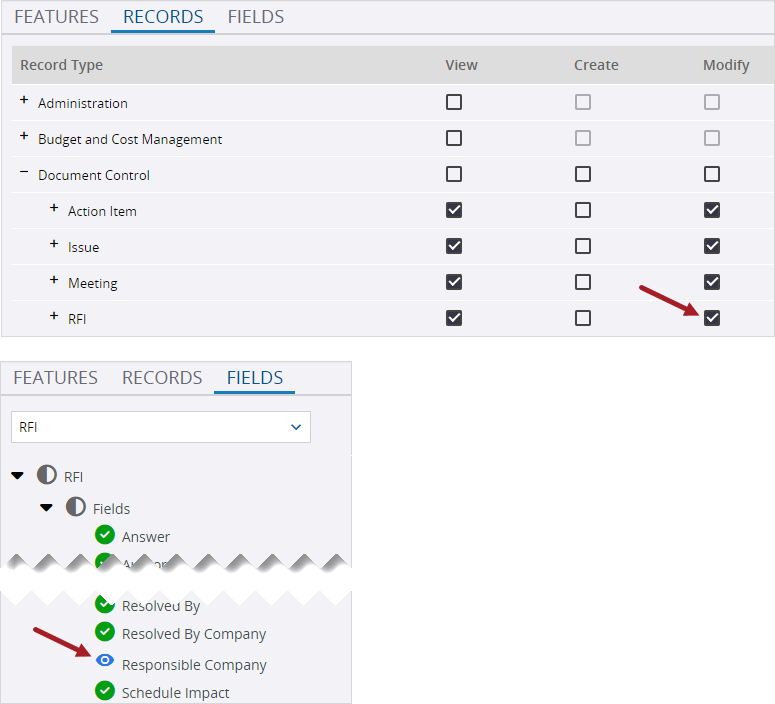
Security role permissions for RFIs
For the Open status for RFIs, Contributors have the Editor permission.
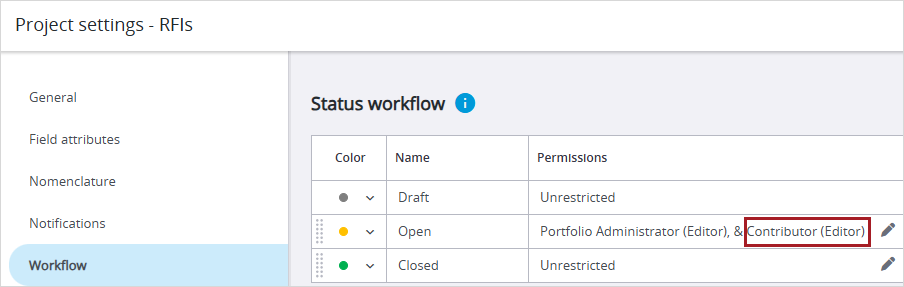
Restricted permissions for the Open status
In RFIs with the Open status, Contributors can edit all the fields except for the Responsible Company field.
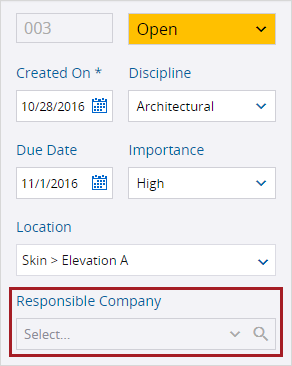
Read-only Responsible Company field in RFI
- The Portfolio Administrator role has the Editor permission for all statuses.
- If your security role isn't selected for a restricted-access status, you have view-only permission if your security role has the View permission for the record type.
- A locked status overrides any status permissions.
To allow unrestricted access for a status
- Next to the status, select
 (Edit).
 - In the Status Permission dialog, select Unrestricted.
- Select Save.
To restrict access for a status
- Next to the status, select (Edit).
- In the Status Permission dialog, select Restricted.
- In the Roles with access list, select one or more security roles.
- To close the Roles with access list, select outside of the list.
- Next to the selected security role, select the permission list, and then select the permission.
- Select Save.
Dashboard statuses
You can select up to five statuses for record dashboard widgets.
- Sommige item typen hebben geen dashboard widget.
- Voor tekeningen zijn alleen de statussen Actueel en Niet-actueel beschikbaar voor de dashboard widget.
To select a status for a dashboard widget
- In the portfolio or project settings, select Record Settings.
- Select the record type and then select Workflow.
- In the Dashboard visibility column, select the checkbox.
Tip
To open the record settings from the dashboard widget, you can also select N/A if it's available.
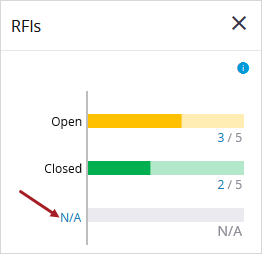
The record settings are opened at the portfolio level if you have access to the portfolio settings and the project settings are locked. Otherwise, the record settings are opened at the project level.
If the maximum number of statuses is selected already, you can deselect a status before selecting another one.
Deleting statuses
U kunt Snippet-Item-Lower-Plural die in gebruik zijn verwijderen. Een verwijderd(e) Snippet-Item-Lower blijft gekoppeld aan een Snippet-Generic als die/dat eerder geselecteerd was, maar u kunt de/het verwijderde Snippet-Item-Lower niet voor iets anders selecteren.
Default statuses, such as Draft, can't be deleted.
To delete a status
- On the grid row, select
 (Remove).