ProjectSight Mobile
Take ProjectSight's cloud-based construction project management software with you in the field on your phone or tablet.


 Download
October 18, 2025 Version 2025.18
 Feature enhancements
Daily reports - Company and location filters
In daily reports, the company and location filters are applied together so that only labor and equipment cards that match both filters are displayed.
Example
The daily report only displays a labor or equipment card if its location is Exterior and its company is Trimble.
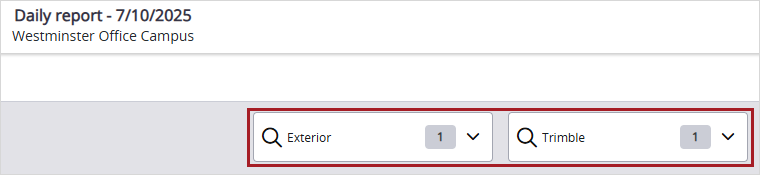
Location and company filters
When you generate a report for daily reports, the report only includes labor and equipment cards that match the filters.
Resolved issues
- When a large number of photos are uploaded together, all photos are uploaded successfully. (CN 000002764 / PS-61026)
- A specific user can open a specific project without any errors. (CN 000002922 / PS-62178)
- In RFIs, assignments can be marked as completed. (CN 000003029 / PS-62869)
- In the Transmittals list view, the More button works as expected. (CN 000003031 / PS-62871)
- Budget codes are deleted successfully. (CN 000003032 / PS-62873)
- In drawing sets, when the OCR toggle is on, the title block information is detected. (CN 000003038 / PS-62917)
October 11, 2025 Version 2025.17
Resolved issues
- Contract invoices with a stored material change are included in the budget transaction. (CN 000002959 / PS-62474)
- The PCO Number is shown when you open the PCO Record. (CN 000003005 / PS-62727)
- In the PCO Item pop-up window, the arrows to move between PCO Items work. (CN 000003018 / PS-62833)
October 4, 2025 Version 2025.16
Feature enhancements
Supported languages
You can change the language that's used for the user interface text in your portfolios. The following languages are supported in ProjectSight:
- Dutch (Nederlands)
- French (Français)
- German (Deutsch)
- Spanish (Mexico)
Australia, New Zealand, and UK terminology are also supported.
- (Enterprise and Go versions) If you change the nomenclature settings, the affected record types use the custom nomenclature instead of the portfolio language.
- The online help is only available in English (United States) but will be translated in a future release.
To change the portfolio language in your Trimble Identity profile
- On the banner, select your profile picture or initials, and then select My Profile.
- Do one of the following:
- Supported language: From the Language list, select a supported language.
- Australia or New Zealand terminology: From the Language list, select English (United Kingdom), and from the Country or Region list, and select Australia or New Zealand.
- UK terminology: From the Language list, select English (United Kingdom).
- Select Save, and then close your profile.
- Sign out of ProjectSight and then sign in again.
If you select a language that ProjectSight doesn't support, your portfolios use English.
This allows Trimble Identity to check your language selection.
Viewpoint Vista integrations - Owner changes
You can sync prime contract change orders (PCCOs) and revenue information from ProjectSight to Viewpoint Vista.
Watch a video
Video highlights:
- 0:40 - Overview of the change management process
- 1:27 - Prerequisites
- 1:50 - Add potential change orders (PCOs) with revenue
- 3:26 - Add the PCOs to a change order request (COR)
- 4:10 - Add the COR to a PCCO
- 4:55 - Send the PCCO to Vista
- 5:23 - Job cost change orders in Viewpoint Vista
To manually sync a PCCO
- Ensure that you have the following ready:
- A linked project with budget items
- An owner contract with contract items, which link to the budget items and are impacted by the revenue
- Create a PCO.
- To include the revenue when you bill the owner, select the Include in COR/PCCO checkbox in the Potential change order items grid.
- Change the status to Approved.
- On the navigation toolbar, select
 (Send to Vista), and then select Send.
 - Create a change order request (COR).
- Add the synced PCO to the COR.
- Change the status to Approved.
- Create a PCCO.
- Add the COR to the PCCO.
- Change the status to Approved.
- On the navigation toolbar, select (Send to Vista), and then select Send.
The total revenue amount, not just the budget impact, is included in the PCCO.
If needed, Viewpoint Vista creates a job cost change order and updates the Vista budget impacts through that change order. The revenue information for each PCO in the related COR is added to that change order.
Resolved issues
- When a checklist template is edited using the Excel import sheet and then published, records that are created from the mobile app sync correctly to the web app. (CN 000002652/ PS-60382)
- When the budget is grouped, filtered, and then refreshed, the Total row remains in the correct position. (CN 000002782 / PS-61166)
- The ERP code, ERP integration status, and ERP status message fields are available in the nomenclature settings. (CN 000002817 / PS-61476)
- For drawings that are uploaded in the Drawings module, the title is identified and displayed correctly. (CN 000002902 / PS-62070)
- A specific user can open the Checklists and Drawings modules without any errors. (CN 000002960 / PS-62479)