 Search tips
- To search in a subset of topics, select
 in the search field and select a filter.
 - To search for a specific word or phrase, add quotation marks around it (example: "budget column") in the search field.
- To remove highlighting on the search terms in a topic, select
 .
. - To search within a topic, select
 , press Ctrl+F, and enter the search term.
ProjectSight Mobile
Take ProjectSight's cloud-based construction project management software with you in the field on your phone or tablet.


Download the .xsd files and then create a report file, or edit an existing report file.
For detailed information on using Crystal Reports, refer to their documentation.
 To download a set of .xsd files
All the .xsd files for the record type are downloaded in a ZIP folder.
If you rename the .xsd files, the file upload will fail for the custom report in ProjectSight.
To download a .rpt file
- In the panel, select Download Report File.
Creating report files
After you download the .xsd files for a record type, use them to create a new .rpt file in Crystal Reports. You can use the general .xsd file in the report file, and then insert subreports that use specific .xsd files.
General .xsd files
| Record type | File name |
|---|---|
| Action items | HotList.xsd |
| Applications for payment | ApplicationForPay.xsd |
| Budgets | Budget.xsd |
| Change order requests | ChangeOrderRequests.xsd |
| Checklists | Checklists.xsd |
| Contract invoices | ContractInvoices.xsd |
| Contracts | Contracts.xsd |
| Cost forecasts | Forecast.xsd |
| Daily reports | DailyReports.xsd |
| Drawings | Drawings.xsd |
| Drawing sets | DrawingSets.xsd |
| Field work directives | FieldWorkOrders.xsd |
| General invoices | GeneralInvoices.xsd |
| Issues | Issues.xsd |
| Meeting minutes | Meetings.xsd |
| Notices to comply | Notices.xsd |
| Potential change orders | PotentialCO.xsd |
| Prime contract change orders | PrimeContractCO.xsd |
| Punch items | PunchList.xsd |
| Purchase orders | PurchaseOrders.xsd |
| Requests for information | RFI.xsd |
| Safety notices | Safety.xsd |
| Specification sets | SpecSet.xsd |
| Specifications | Specification.xsd |
| Subcontract change orders | SubcontractCO.xsd |
| Submittal packages | SubmittalPackages.xsd |
| Submittals | SumittalRegister.xsd |
| Transmittals | Transmittals.xsd |
To create a new report file using .xsd files
- On the toolbar, select File > New > Blank Report.
- In the Database Expert dialog, in the Available Data Sources section, expand the Create New Connection group.
- To the left of the ADO.NET (XML) group, select +.
- In the ADO.NET (XML) dialog, to the right of the File Path field, select
 .
. - Select an .xsd file, such as the general file for the record type, and then select Finish.
- In the Available Data Sources section, select the table, and then add it to the Selected Tables section.
- Select Finish.

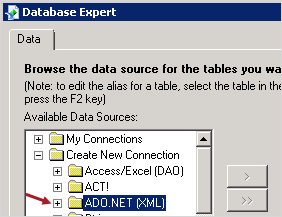
If the ADO.NET (XML) dialog doesn't open, double-click Make New Connection in that group.
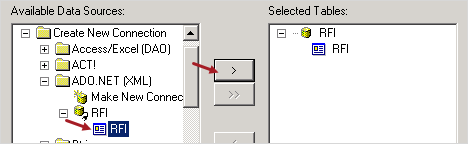
You can add the fields from the Field Explorer to the report file.
Creating subreports
In the report file, you can create subreports that can be inserted in the main report file.
To create a subreport
- On the toolbar, select Insert > Subreport.
- Select Create a subreport with the Report Wizard.
- Enter the report name, and then select Report Wizard.
- Create a new connection for the data source.
- Select OK.
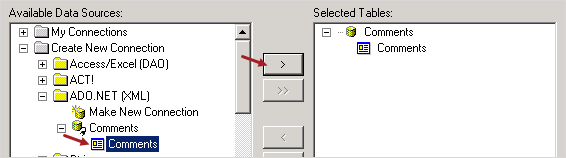
—Or—
In the My Connections group, select a table, and then add it to the Selected Tables section.
You can add the fields from the Field Explorer to the subreport.
Using nomenclature
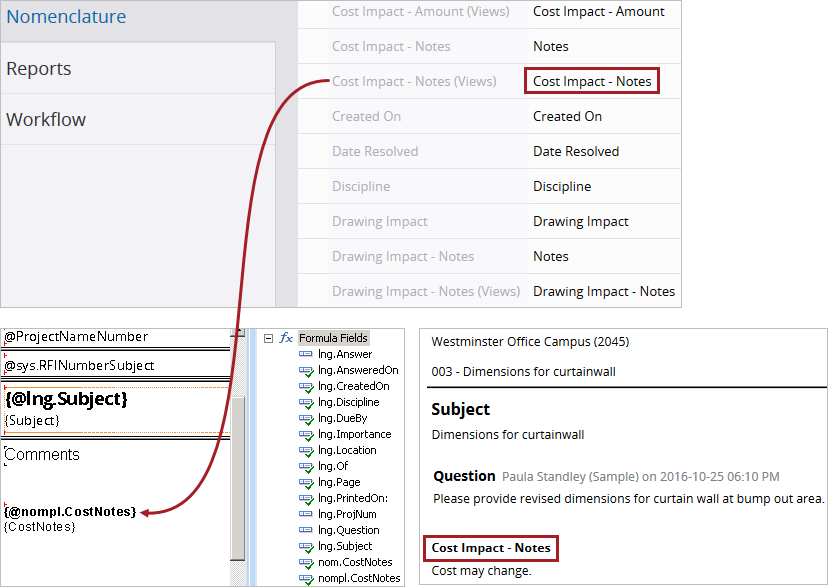
Picklist nomenclature, identified by the word (Views) in the system name, is used for differentiating between two fields with the same label and for fields with ambiguous labels.
When you create a formula field in the report file, use a prefix for the formula name:
- nom. - For field nomenclature.
- nompl. - For picklist nomenclature.
Example
You want to include the cost impact notes field in an RFI report. Because RFIs have multiple fields for notes, you create a formula field using Cost Impact - Notes (Views) instead of Cost Impact - Notes.
 Adding custom report templates
You can upload an .rpt file to add a custom report template.
The data group in the file must match the record type.
To add a custom report template
- Enter the title, subtitle, and description.
- Select Upload Report File, and then select the .rpt file.
- To grant access to the report template, select Modify Permissions, and then select the roles.
- Select Create.
The title and subtitle combination must be unique for the record type.