 Search tips
- To search in a subset of topics, select
 in the search field and select a filter.
 - To search for a specific word or phrase, add quotation marks around it (example: "budget column") in the search field.
- To remove highlighting on the search terms in a topic, select
 .
. - To search within a topic, select
 , press Ctrl+F, and enter the search term.
ProjectSight Mobile
Take ProjectSight's cloud-based construction project management software with you in the field on your phone or tablet.


Information Records
 Note: The Information Management module is only available in Europe, Australia, and New Zealand.
Use the information records to determine how the project and portfolio will use information management documents.
- Select Records from your project or portfolio settings.
- Select Information records.
 Customizable naming convention
Naming conventions are standard ways to name files being uploaded to the Information management module to ensure file names are compliant with ISO standards. Each component of the convention can be free text, lists, and fixed elements, and can be configured with different validation rules.
Customizable naming conventions are created in the portfolio. The Information management module comes with two default ISO-compliant templates for each portfolio that cannot be changed. Administrators can customize, add, or delete specific component values, but each component can appear only once in each convention. Records cannot be saved if they do not follow the naming convention.
To add or edit a naming convention in the portfolio
You must have the correct permissions to add a naming convention. You can only edit naming conventions that you created. Components must be part of the portfolio component library before being added to the naming convention.
-
Select Naming convention in the portfolio. ProjectSight displays the list of naming conventions.
-
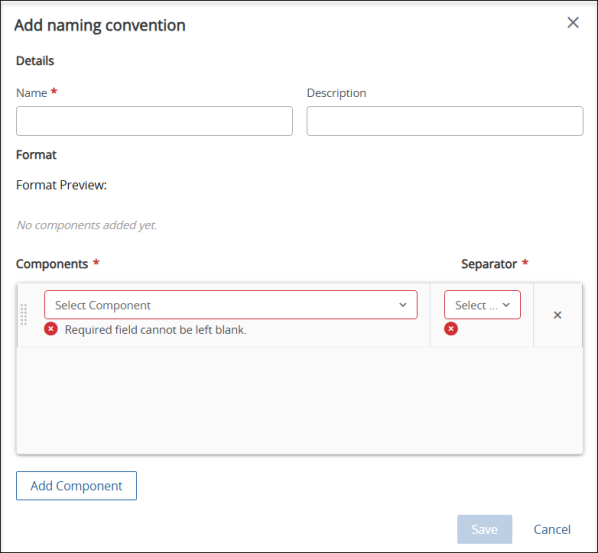
Select Add naming convention or select the Edit pencil icon for an existing convention. ProjectSight opens the Add naming convention or Edit naming convention window.
-
Enter or change the name for the naming convention. Each pattern name must be unique.
-
Enter or change the description.
- If you are adding a new convention:
-
Select the first component and the separator. Your choice of separators should be consistent for all components.
-
Select Add component and choose the remaining components and separators. The last component does not need a separator.
- If you are editing an existing convention:
-
Select the first component and the separator. Your choice of separators should be consistent for all components.
-
Select Add component if you need to include more components.
-
Select the X for a component to remove it.
- Select Save.
ProjectSight creates the naming convention and adds it to the list or updates an existing convention.
To reorder naming components
If a component is in the wrong spot in a naming convention you created, you can move the component.
-
Select Naming convention. ProjectSight displays the list of naming conventions.
- Select the Edit pencil icon for the naming convention to reorder.
-
Select the component, and then drag it to its new position in the list.
-
Select Save.
To select a naming convention
Select the naming convention to use as the default for the project.
-
Open the Information management records for the project.
- Select the toggle option for the naming convention you want to use.
- All future uploads will follow that convention.
- Previous uploads will not be affected.
-
Select the checkbox signifying you understand the change and choose Confirm.
ProjectSight changes the selected naming convention.
To see the naming convention history
- Select the Show history
 icon. ProjectSight displays what changed, the user who made the change, and when the change was made, with the latest information at the top of the list.
 -
Select Close to return to the Naming convention page.
Portfolio components
Add components to the portfolio library to standardize options when creating naming conventions. Components can be lists, free text, or fixed values.
To add a portfolio component
- Select Components for the portfolio.
-
Select Add components .
-
Add the component name.
-
Add the component description.
-
Select the type.
-
Add any codes, descriptions, minimum and maximum values, or any other parameters for the type.
-
For list types, select Add to add more codes and descriptions.
-
To remove a code, select the X for that code.
-
Select Add.
ProjectSight adds the component to the library.
To change a portfolio component
Edit an existing component to standardize options when creating naming conventions.
You cannot change the type of a component that is in use. If the type is incorrect, delete the component if it is not in use and create a new one.
- Select Components for the portfolio.
- Select the Edit pencil icon for the component in the Components grid to edit the components name, description, or values. Select Save.
- To update a component's values, select the checkbox for the component to change. ProjectSight opens the Details pane on the right. The edit options differ depending on the type of component.
- For a free text type, select the Edit pencil icon in the Value preview field.
- Change the minimum length, the maximum length, or if the component will contain solely text or text and numbers.
- Select Done.
- For a list type, select the code and description to modify the current value, or select Add to add a new value.
- Add the new code and description.
- Select Done.
- To remove a code and description, select the Delete trash can icon.
- For a fixed value type, select the Edit pencil icon in the Values field to update the fixed value.
- Select Done.
ProjectSight updates or removes the components.
To remove a portfolio component
You can only remove components that are not in use by a naming pattern.
- Select Components for the portfolio.
- Select the Delete trash can icon.
- Select Delete in the confirmation window.
ProjectSight deletes the component.
Suitability
See the available suitability statuses for information management documents.
-
Select Information Records from your project or portfolio settings.
-
Select Suitability.
Suitability Codes
The suitability status defines the purpose of the document uploaded to ProjectSight. This can be for a work in progress, construction, a client requirement, or other reasons. The option you chose in the Suitability Status field determines the workflow of the document.
You can add or remove suitability codes or change the name and description of current codes.
| Name | Description | Details |
|---|---|---|
| S0 | Work in Progress | The information is in a private, non-shared state and used for internal development. It is not visible or accessible to other project teams. |
| S1 | Suitable for Coordination | The information has been checked by the originator and is now shared for the purpose of coordination with other teams. It is not approved for construction or contractual submission. |
| S2 | Suitable for Information | The information has been checked and is now shared with other parties for information purposes only, as defined within the appointment. This is often used for a contractual deliverable at a key stage gate. |
| S3 | Suitable for Review and Comment | The information is shared specifically to be reviewed and commented on by other parties, typically within a defined timeframe. |
| S4 | Suitable for Construction | The information has been reviewed and authorized as suitable for use in construction, manufacturing, or fabrication. This is a critical status change, often termed "going live." |
| AR | Archived | A record of information that was previously published but has now been superseded by a later revision. It is retained for the project record. |
| CR | Client Requirement | This code is reserved for use as defined within the client's specific information requirements. Its meaning must be clearly documented in the project's information standard. |
Modify Suitability Information Records
Add, remove, or organize the default values for the suitability status in information management documents. Portfolio settings must be unlocked before they can be changed by selecting the padlock in the upper right corner. Select the padlock again to relock the settings when you are finished.
To add a status
- Select Add new row.
-
Enter a unique name in the Status field.
-
Enter a description of the status in the Description field.
-
Select Done.
ProjectSight adds the new suitability status and makes it available for your information management documents.
To change the name or description of a status
You cannot change a status if it is in use.
- Select the status or description to change.
- Enter the new information.
- Press the Tab key or click in the pane.
ProjectSight changes the information.
To reorder a status
- Click the status and drag it to its new location.
ProjectSight moves the selected status.
To delete a status
You cannot delete a status if it is in use.
- Select the status.
- Select the X for that status.
ProjectSight removes the selected status.